Vaultivo

Guides

How a document moves through your day.

The features page says what Vaultivo does. This one says what you do — from the file to the confirmed entry.

Getting them in

Three ways, and two of them you set up once.

Forward by email

Your business has its own filing address — a random block of characters, not your company name. It is in Settings under Email, with a button to copy it. Forward the document there: the attachment is taken in, the email itself is not.
Drag into the window

Several files at once, from the scanner folder or the desktop. That works on the add-documents page — and equally from any other page, by dragging the files into the window.

Bring your existing archive

Years of documents in one pass, with dates and business partners. However your folders are arranged makes no difference — filing happens on fields, not on where a file sat. We set that up with you; it is not a self-service step.

That this address cannot be guessed is the whole of the protection behind it. A readable one would be a way to slip documents into somebody else’s archive.

The inbox

Four stations, and only one of them is yours.

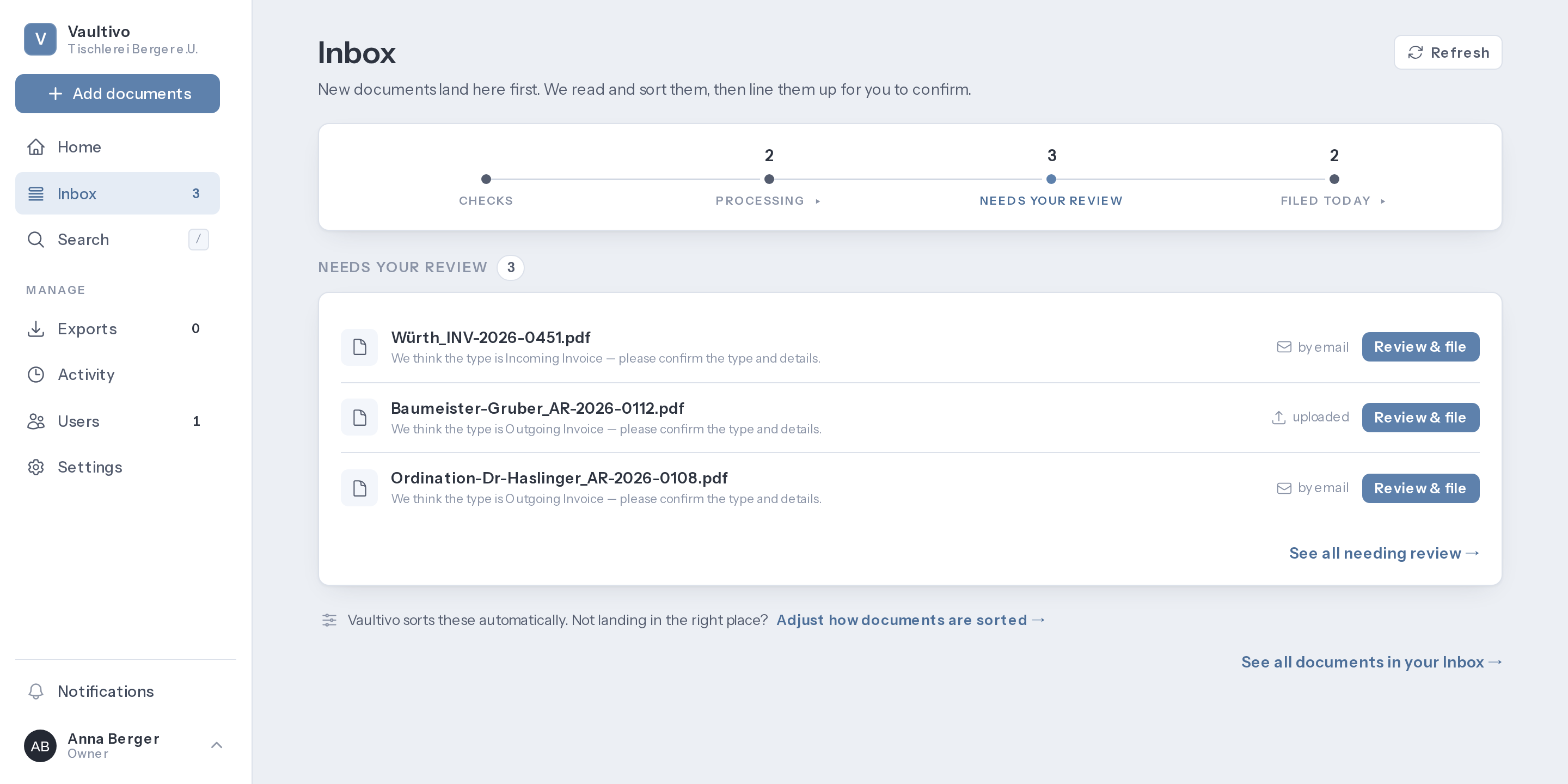
Above the inbox sits a strip of four stations, each with a count. It answers the only question you have in the morning: where are my documents right now.

  1. Checks

    The file is scanned for malware. Nothing to do here.

  2. Processing

    Text is read, fields are recognised. Nothing to do here either.

  3. Needs your review

    This one is yours — and the only one that is highlighted when something is sitting in it.

  4. Filed today

    What you confirmed today. To look at, not to act on.

The Vaultivo inbox: the strip of four stations with their counts along the top, and below it three documents waiting for your review.
The inbox as it looks after signing in. Sample data from an invented business.

Confirming

What has to be there when you confirm.

Document type, number, business partner, date, amount and currency. What Vaultivo read is already filled in; what is missing you type in — and without those fields a document cannot be filed.

No second prompt

Confirming means confirming. No further dialog appears.

Several at once works

You can confirm a batch together. What it skips is exactly the documents with no document type, an uncertain reading, or a warning against them — which is to say the ones that needed a look anyway.

Signing in

A six-digit code, and why we ask for one.

Your archive holds your company's documents, so a password on its own is not enough to open it. Signing in also asks for a six-digit number from an app on your phone, which changes every thirty seconds. That is our decision about your archive, not a legal requirement.

What you install

An authenticator app. We suggest Proton Authenticator: free, works with no signal, and not another Vaultivo account. Any authenticator app does the job, and so does a password manager that makes these codes. Switch the app's own backup on while you are in it — that is what saves you when a phone is replaced.

Who has to

Owners and administrators, because those accounts reach the whole archive. Employees, accountants and read-only users can switch it on from their profile and are never made to.

Your recovery codes

When you finish you are shown a set of one-time codes, once. Each works a single time, and they are what gets you in when the phone is not to hand. Print them and keep them with your business paperwork; kept on the phone they are meant to replace, they are no help.

If the phone is gone

Sign in with a recovery code, then set the app up on the new one. If the phone and the codes are both gone, another owner in your business, or Vaultivo support, can clear the second factor so you can set it up again.

At sign-in it is what you already do plus one step: your email address and password, then the six digits.

Try it free for 14 days Something not going through? Go to help